
HSVE Portal · Release Preview
Manage Proxmox from your browser
See your hosts, VMs and containers in one place. Open a VM console or check a backup from the browser. Portal access is included at no extra cost with an HSVE Proxmox Template Script purchase.
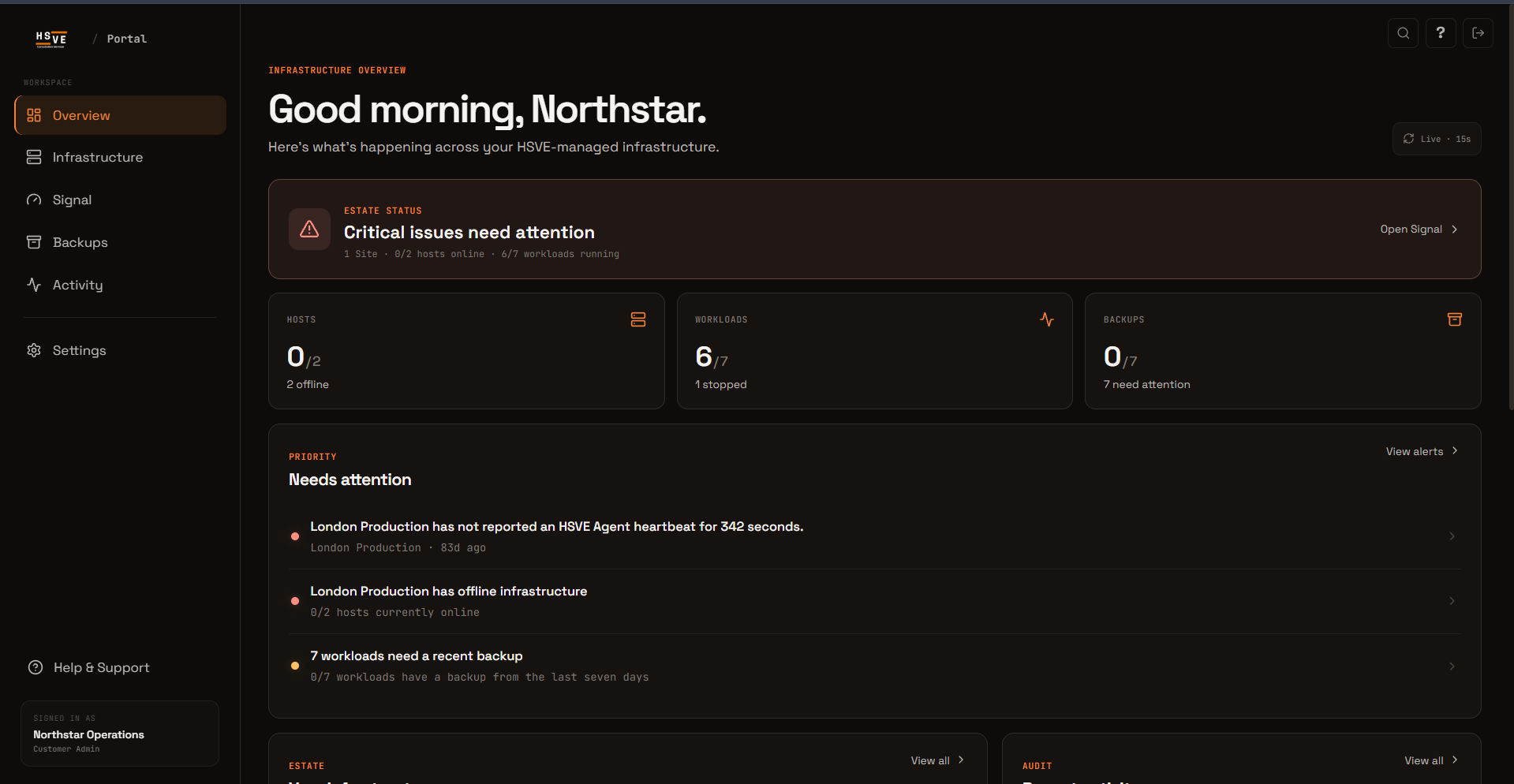
Open a VM console
Read the Virtual KVM guide- In Portal, open Virtual Machines and select a running VM on a connected Site.
- Choose Console. If a desktop viewer opens first, switch to Virtual KVM.
- Use the guest’s screen and keyboard from the browser. The session follows your Site permissions.
Keep the Proxmox API private
The HSVE Agent runs at your Site and connects out to HSVE Cloud. Portal relays console sessions over that authenticated connection. The Proxmox API and guest RDP port can stay private.
Ask about the connectionBrowserHSVE Portal
HSVE CloudAuthenticated relay
Your Proxmox SiteOutbound HSVE Agent
What you can manage
- Inventory and power controls
- See the nodes, VMs and LXC containers reported by each Site. Use your Site permissions to start, shut down or restart guests.
- Monitoring, backups and snapshots
- Check Agent connectivity and resource usage. Review backups and manage snapshots from the guest’s page.
- Deployments and team access
- Deploy VMs from the Marketplace and use Site roles to control which resources each person can manage.
Connect your first Site
Sign in, create a Site and run the one-time Agent enrolment command on your Proxmox host. When the Site shows as online, open Virtual Machines to check that your inventory has appeared.